Wednesday, October 11, 2006

How to save flash games in firefox from any website

UPDATE:
This hack works only in the Firefox browser!! If you don't have the Firefox browser then click on the Firefox button on the right side (-->) of page to download Firefox browser for free!!
By the way Firefox is great browser and has so many add on features which is not there in any other browser !! So use the Firefox button there on the right side of page (-->) and download it for free !!!


We often see some nice flash animations and flash games on the web.
You must have wondered how to save flash animation from the web.
You can do it with some special softwares.
You can do it easily without any special softwares also.
Yes... With the Firefox browser.

Steps to save flash in firefox

1) open that page containing that flash in firefox.

2) Now open the menu as shown

Tools >> Page Info >> Media

3) The Media tab shows all the files displayed on this page.

4) Now scroll through all the files and find files with type "Embed" and "application/x-shockwave-flash"

See this picture - this is the "File Info" window in Firefox.

Click on it for see a full view.


5) Now click on the "Save as" button and save you flash file as you wanted !!!!

Saturday, October 07, 2006

Reduced functionality mode of Windows Vista

Microsoft says that it's desktop and server versions of Vista will have a inbuilt protection scheme to shut down people who try to use illegal version of its operating system.

This protection scheme will limit the features of illegal version of Vista. If a legitimate product key is not activated in 30 days, Microsoft Vista will go into reduced functionality mode.

The screen will show a little sign saying "this copy of Windows is not genuine", while Aero won't work and the ability to use a PC will be impaired.

Now we know what you're thinking, but this is what Microsoft means. Vista will let you use a browser but not all the time. Microsoft said: "Windows Vista will have a reduced functionality mode but one that is enhanced."

Friday, October 06, 2006

5 Simple Tips to Speed up Your Windows PC

Follow the five tips given below. You can speed up your sluggish Windows PC.

Free up your disk space
Free up your disk space… This is very necessary for your system drive!! (i.e. C drive)

>> Empty your Recycle Bin

>> Free your browser cache.

>> Use Disk Cleanup (Start >> Run >> CleanMgr)

>> Delete any unnecessary files you have. (Remember to delete it from Recycle bin too!!)

Remove Spyware from your PC

Spyware can collect your personal information and send it to its creator.

That can make your PC sluggish. So remove any spywares found on your computer using various Anti-Spywares that can be found on internet.

Control Start-up programs

Open “run” from your start menu and run msconfig. This opens a window. Select “Startup” tabin that window.

Uncheck any unnecessary programs that you find here.

(Please be carefully here…Uncheck it if you know for sure that it’s an unnecessary entry!!)

Then close it and restart system. Now you can experience a faster startup…

Use Disk Defragmenter to tune up data access time

Run the disk defragmenter at least once in a month. This will help you to speed up your hard disk.

You can run the disk defragmenter in this manner.

Start >> All Programs >> Accessories >> System Tools >> Disk Defragmenter

You have to run it “immediately” if you

>> Add many files to your system at once (like copy huge number of files from a CD or DVD to your system)

>> More than 80% of disk space is consumed.

>> Reinstall Windows OS (very vital!!)

>> Install any new programs (ok, to some extent)


Repair any disk errors

Hard disk in your system can develop bad sectors in the long run. These bad sectors can considerably slow down your system. So check your hard disk for any errors and then fix it. To do this follow this way.

Start >> My Computer >> Right Click on any of your drive (menu)>> Select Properties (menu item) >> Tools (tab) >> check now (button)


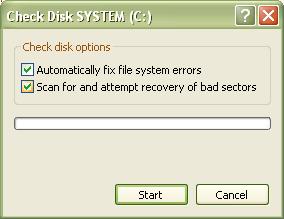
You should get a box like this.

Select the check boxes and click Start button.

That’s it.

Do this for all of your drives individually.


For the system Drive (i.e. C drive by default) it will be checked for errors during next system start up. It will be confirmed with you.

I hope for sure this can speed up your system.

If you have any comments please write it in the comments section.